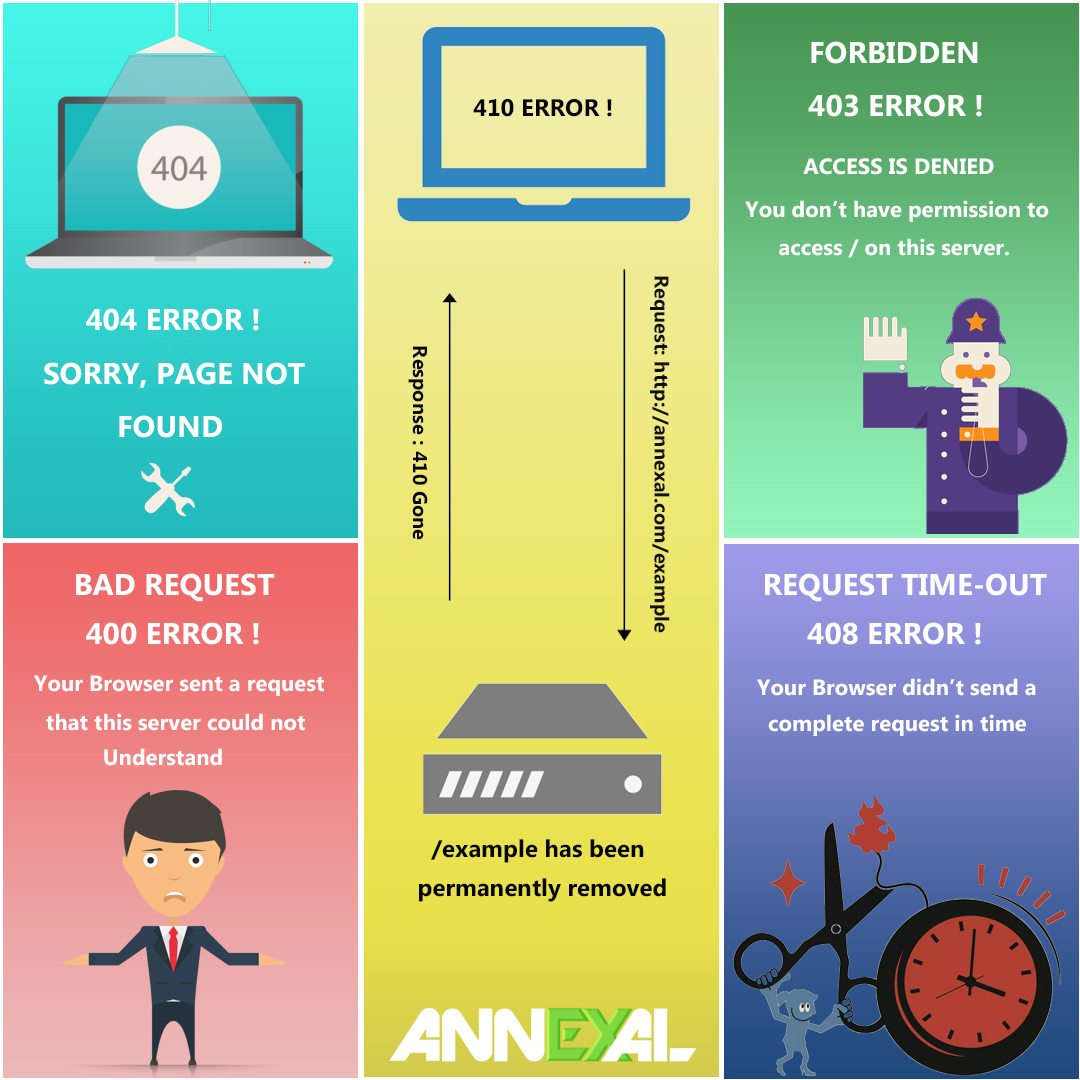
Client-side HTTP errors are some of the most common issues website owners encounter — and most are fixable in minutes once you know what’s causing them. Here are the 5 most common ones, what they mean, and exactly how to resolve each one.
400 — Bad Request
Server cannot understand the request
A 400 error appears when the server receives a request it can’t understand — typically because the request doesn’t follow HTTP protocol rules. Common causes include a corrupted browser cache, a malformed URL, or a file upload that exceeds the server’s size limit.
- Check the URL for typos or malformed characters
- Clear your browser cookies and cache
- If uploading a file, try a smaller file size
- Log out and log back in
- Disable recently installed browser extensions or plugins
403 — Forbidden
Server understands but refuses the request
Unlike a 401 (unauthorised), a 403 isn’t an authentication issue — the server understood the request perfectly and is deliberately refusing it. This usually means the website owner has restricted access to that page or directory, or the specific file doesn’t have the correct permissions to be publicly viewed.
- Clear your browser cookies
- Contact your internet service provider if the issue is network-related
- Contact the website owner directly — they may need to adjust file permissions
404 — Not Found
Page doesn’t exist at this URL
The most familiar error on the web. The server is working fine — it just can’t find anything at the URL you requested. Most common causes: a mistyped URL, a page that was moved or deleted without a redirect, or a site migration where the URL structure changed.
Google’s position: “404 errors do not impact your site’s ranking in Google, and you can safely ignore them.” However, 404s on pages that previously had backlinks or organic traffic do represent lost value — those should be redirected.
- Check the URL for typos
- Search for the page via Google to find its new location
- Set up 301 redirects from deleted or moved pages to their closest equivalent
- For temporarily unavailable pages, use a 302 redirect
408 — Request Timeout
Request took too long to complete
A 408 means the server waited for the client’s request to complete but it took too long. This can happen due to a slow internet connection on the client side, heavy load on the server, or temporary network congestion between the two. It’s usually transient — trying again often resolves it.
- Check your internet connection and try again
- If it persists, contact the website owner — the server may be under heavy load
410 — Gone
Resource deliberately removed
A 410 is similar to a 404 but more definitive — it signals that the resource was intentionally and permanently removed, not just missing. Google treats 410s differently from 404s: a 410 tells crawlers to deindex the URL immediately and stop crawling it, whereas a 404 may be revisited for some time in case the page returns.
Use a 410 when you’ve deliberately deleted a page and don’t want it crawled again. Use a 404 (or ideally a 301 redirect) when a page was moved or renamed.
- If the page should exist, restore it or set up a 301 redirect to its replacement
- If the page is intentionally gone, leave the 410 in place — it’s the correct response
- Check Google Search Console to monitor deindexation of removed pages
Quick reference
| Error | Meaning | Quick fix |
|---|---|---|
| 400 | Bad request syntax | Check URL, clear cache |
| 403 | Access deliberately blocked | Contact site owner |
| 404 | Page not found | Check URL or set up redirect |
| 408 | Connection timed out | Check connection, retry |
| 410 | Permanently removed | Redirect or leave as-is |
Website issues?
We diagnose and fix WordPress errors, redirects, and technical issues.
From broken pages to plugin conflicts to server errors — we handle the full technical picture.

I was recommended this website by my cousin. I’m not sure whether this post is written by him as nobody else know such detailed about my trouble. You are incredible! Thanks!
This information was written by us a couple of years back.
Nice!
Hi to all, for the reason that I am truly keen of reading this weblog’s post
to be updated regularly. It includes fastidious material.
What’s up, just wanted to mention, I enjoyed this post.
It was funny. Keep on posting!
Hi! Do you know if they make any plugins to
assist with SEO? I’m trying to get my blog to rank for some targeted
keywords but I’m not seeing very good gains. If you know
of any please share. Many thanks!
Hi,
Many plugins are available to help you with on-page optimization of websites and pages, and I use the SEOpress plugin. Reach out to us if you want to know major problems with your SEO.